Sync Google Tasks with Apple Reminders on Your Mac
ReminderBridge connects selected Google Tasks lists with Apple Reminders, so work tasks and personal reminders stay available in the apps you already use.
- Keep task creation, updates, deletions, and list moves connected.
- Choose the Google Tasks lists you want in Apple Reminders.
- Sync on a schedule or use Sync Now when you need an update.
Requires macOS 13.5 or later, a Google account, and an active internet connection.
One task workflow across Apple and Google
ReminderBridge runs on your Mac and connects selected Google Tasks lists with Apple Reminders. Syncing happens locally, and no task data is stored remotely by ReminderBridge.
- Task creation
- Task updates
- Task deletions
- Moves between lists
- Manual and scheduled sync
How ReminderBridge Works
Connect
Sign in with the Google account that contains the Google Tasks lists you want to use.
Select
Choose which Google Tasks lists should appear as matching lists in Apple Reminders.
Sync
Use scheduled intervals or Sync Now to keep supported task changes connected.
Stop checking two separate task systems.
Google Tasks can hold work and assigned tasks while Apple Reminders remains the place you check throughout the day. ReminderBridge connects selected lists on your Mac, so supported changes can follow you between both systems.
Selected-list control
Choose the Google Tasks lists you want ReminderBridge to include instead of bringing every list into Apple Reminders.
Familiar Apple workflow
Use Apple Reminders while ReminderBridge handles supported task changes with Google Tasks on your Mac.
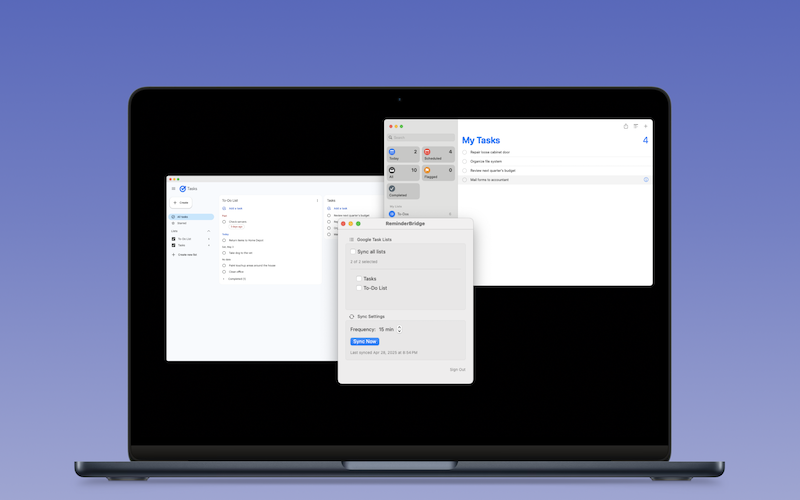
Keep supported task changes connected
ReminderBridge gives you practical control over how Google Tasks and Apple Reminders work together.
Create and update tasks
Keep task creation and updates connected between selected Google Tasks lists and Apple Reminders.
Move and delete tasks
Supported task deletions and movements between selected lists remain part of the sync workflow.
Local processing
ReminderBridge uses the required system permissions and does not store your task data remotely.
Manual or scheduled syncing
Choose an interval from 15 to 60 minutes, or use Sync Now when you want an immediate sync attempt.
A practical Mac-based workflow
Set up ReminderBridge once, then choose when and what it syncs between Google Tasks and Apple Reminders. If you are deciding whether the two systems can connect, read Can Google Tasks Sync With Apple Reminders?
-
Install on macOS
Get ReminderBridge from the Mac App Store on a Mac running macOS 13.5 or later.
-
Grant required permissions
Allow access to Apple Reminders, Google Sign-In, and notifications if you want sync alerts.
-
Choose your lists
Select a Google Tasks or Apple Reminders list to create its connected counterpart.
-
Choose when to sync
Use a scheduled interval or Sync Now. An active internet connection is required.
Bring Google Tasks into your Apple Reminders workflow.
Use ReminderBridge on your Mac to connect selected lists without adding another task system to check.