Getting Started with ReminderBridge on macOS
First Time Setup
ReminderBridge requires macOS 13.5 or later, an active internet connection, Apple Reminders, and a Google account with Google Tasks.
After downloading ReminderBridge from the Mac App Store, launch the application. On first launch, authenticate with the Google account you want to use.
ReminderBridge requests permission to access:
- Apple Reminders
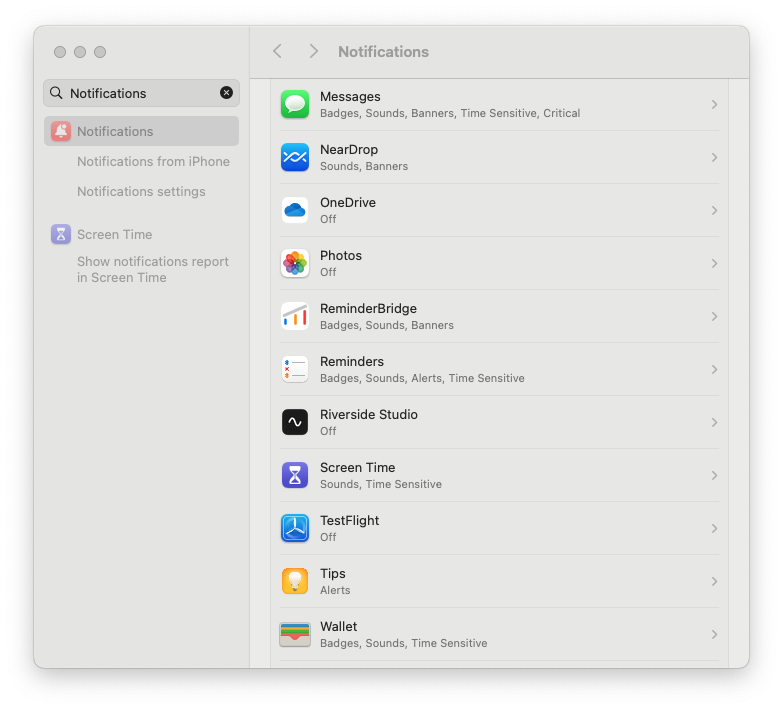
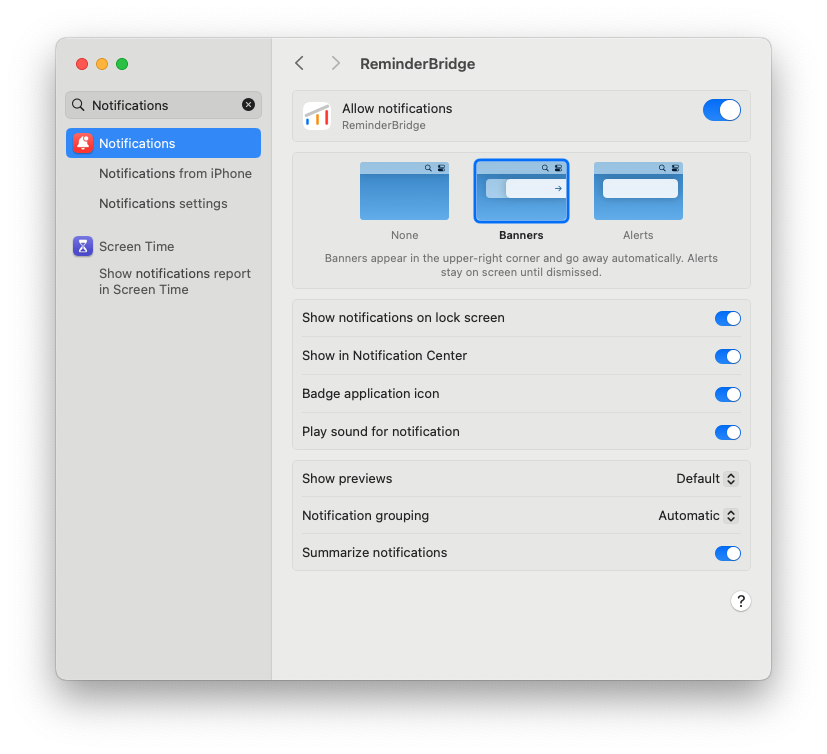
- macOS Notifications
You may skip notifications initially and enable them later in System Settings.
Your First Sync
Lists can originate in either Google Tasks or Apple Reminders. ReminderBridge identifies the originating platform in the interface. After a list is connected, its origin cannot be changed.
If you have never used Apple Reminders and it does not contain any lists, create a temporary empty list in Apple Reminders before continuing. After ReminderBridge completes the first synchronization and creates or connects the intended lists, you may delete the empty temporary list if you no longer need it. Do not delete a list selected or connected through ReminderBridge.
To begin:
- Select the Google Tasks or Apple Reminders lists you want to connect.
- Confirm the destination list ReminderBridge will create.
- Press Sync Now.
ReminderBridge creates the corresponding list on the other platform and synchronizes supported task fields. Deselecting a list stops future synchronization without deleting the lists or their tasks.
When the sync completes, ReminderBridge reports its status:
- In the app UI
- Through macOS Notification Center, when notifications are enabled