Using ReminderBridge
Managing Task Lists
Adding a New List
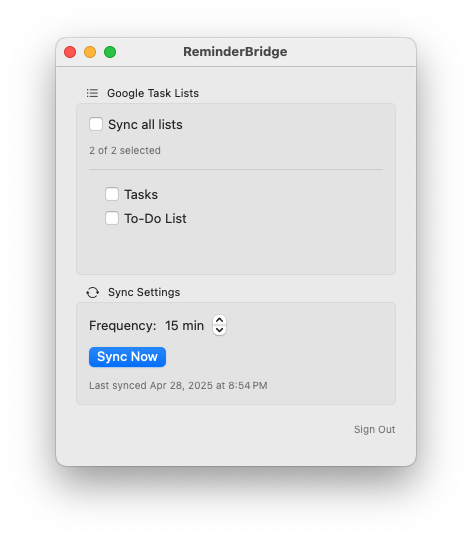
Lists can originate in either Google Tasks or Apple Reminders. Select an existing list in ReminderBridge to create and connect its counterpart on the other platform. The interface identifies the originating platform. A list’s origin cannot be changed after it is connected.
Updating a List
If a connected list is renamed, ReminderBridge reconciles the names using the latest change. List-name reconciliation applies to the existing connected lists and does not create a second list.
Deleting/Removing a List
- Deselect the list in ReminderBridge to stop future synchronization. Deselecting does not delete either list.
- Delete the Apple Reminders list manually in the Reminders app when you no longer need it.
- Delete the Google Tasks list manually through Google’s web or mobile interface when you no longer need it.
ReminderBridge does not automatically delete an entire list. Deleting a Google Tasks list can leave its connected Apple Reminders list without a source. There is currently no additional safeguard for accidental list deletion, so confirm the selected list before deleting it.
Sync Settings
- Setting the Sync Interval
- Manual Sync Button
Details
ReminderBridge supports sync intervals from 15 to 60 minutes in 5-minute increments.
Use Sync Now to start a synchronization attempt without waiting for the next interval. A 30-second cooldown applies between scheduled and manual sync attempts.
ReminderBridge must remain running for scheduled synchronization. It can continue running when its main window is closed.
Supported Task Information
| Field | Behavior |
|---|---|
| Title | Synchronizes in both directions |
| Notes | Synchronizes in both directions |
| Due date | Synchronizes in both directions |
| Due time | Ignored |
| Completion status | Synchronizes in both directions |
| Task movement between connected lists | Synchronizes in both directions |
| Creation date | Supported |
| Links | Stored in task notes |
| Reminders and alarms | Ignored |
| Subtasks | Not supported |
Priority
Apple Reminders priority can synchronize to Google Tasks by adding an asterisk to the Google Task title. Google Tasks does not have a matching priority field, so this title convention represents the Apple Reminders priority.
Recurring Tasks
The platform where a recurring task originates controls its recurrence. ReminderBridge synchronizes the core task information, including the title, notes, and due date, but it does not copy the recurrence rule to the destination.
For the most reliable behavior, edit the recurring task at its source. When an occurrence is completed at the destination, ReminderBridge marks the source occurrence complete and the source platform generates the next occurrence. Changes to the source recurrence are reflected in the destination task.
Conflicting Changes
ReminderBridge normalizes date and time values and compares modification times. If both copies change before the next sync, the latest whole-task change wins. Conflict resolution is not field-by-field, and deletions are reconciled using the same latest-change approach.
Notifications
- How ReminderBridge notifies you
- Notification Sound Behavior
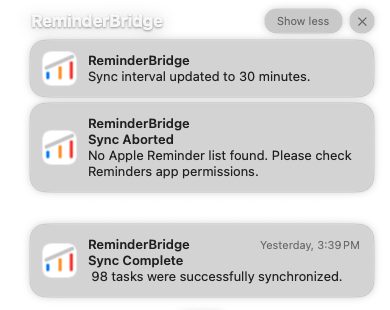
ReminderBridge Uses the macOS Notification Center to Inform You About
- Settings changes
- Connection errors
- Completed syncs
Sound Behavior
By default, ReminderBridge uses the macOS system notification sound.
Permissions and Privacy
- How permissions are used
- How to reset or revoke permissions
Details
ReminderBridge uses permissions to access the required system APIs for Reminders, Notifications, and Google OAuth. Its local data store contains synchronization information, OAuth credentials, synchronization identifiers, and logs.
Task synchronization runs on your Mac. Aeriform does not operate a separate synchronization server or collect task data. Authorized task data is exchanged between your Mac and Google; Apple Reminders data remains managed through the local Apple frameworks and your configured Apple services.
The product website uses Google Analytics. Information voluntarily submitted through the support forum or email is stored by those services. See the Privacy Policy for full details.
To Revoke Permissions
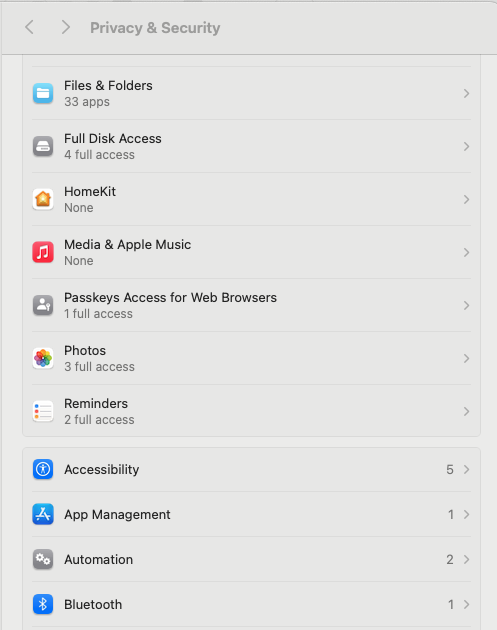
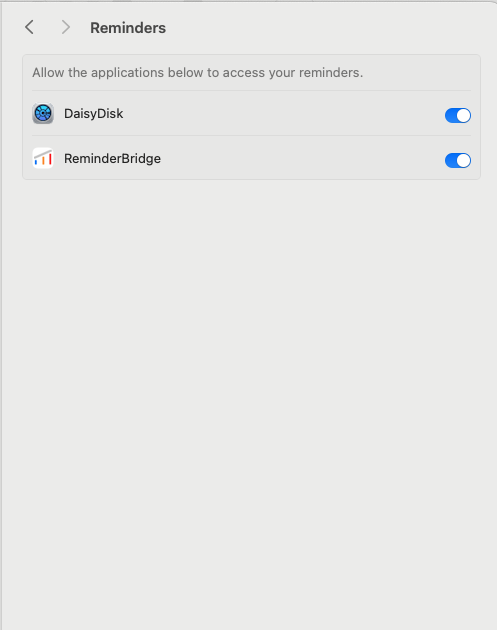
- macOS Permissions